Our recommendation
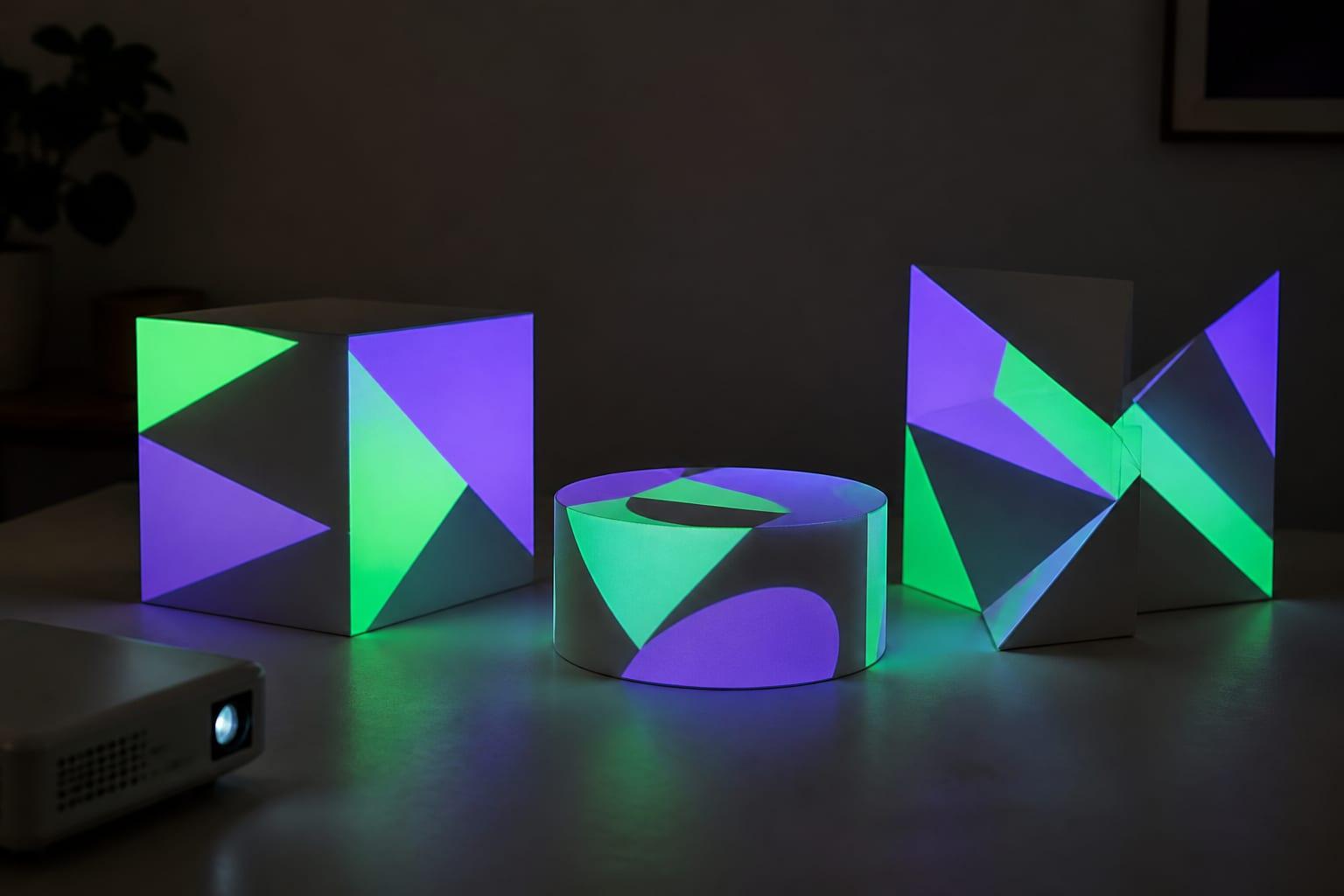
Yes. A Magcubic HY300 Pro can map a pumpkin, a few boxes or a window after dark, and it is a cheap way to learn. Its real specs set the limits: a native 1280×720 panel and a rated 200 ANSI lumens (290 for the Pro+), not the 4K and five-digit lumen figures on many listings. Keep the image to about 1 m (3 ft) wide, switch off auto keystone, and connect your phone by HDMI. For a garage door, a house front or a room with the lights on, it is the wrong tool; the Nebula Capsule 3 Laser we use is the natural step up indoors.
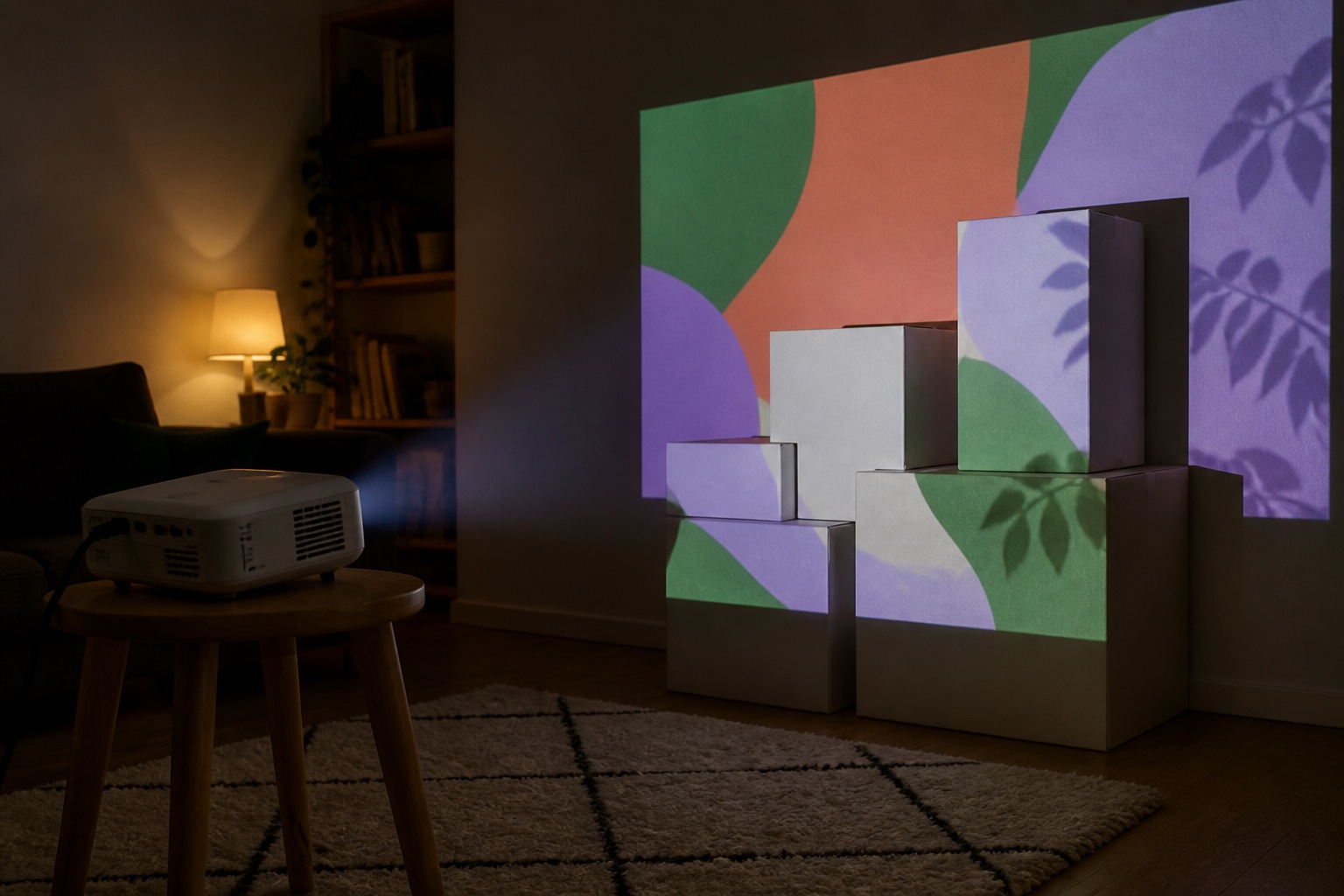
Then map it from your phone. Lazy Lighting fits video to each window, box or door: draw a shape and drag its corners while you watch the projection. Free to download.
Get Lazy Lighting ↗Quick comparison
| Projector | Best for | Brightness (lumens) | Rating standard | Resolution | Throw ratio |
|---|---|---|---|---|---|
| Magcubic HY300 Pro | Cheapest way to learn mapping | 200 | ANSI | 1280×720 | — |
| Magcubic HY300 Pro Plus | A little more light, same limits | 290 | ANSI | 1280×720 | — |
| Anker Nebula Capsule 3 Laser | The step up we use | 300 | ANSI | 1920×1080 | 1.2:1 |
| Anker Nebula Mars 3 Air | More light, still portable | 400 | ANSI | 1920×1080 | 1.2:1 |
Magcubic HY300 Pro
Specs-based pick
Cheapest way to learn mapping. Magcubic's current base model: a single-LCD panel, a manual focus wheel, vertical auto keystone you can switch off, one HDMI input, one USB port and a DC power adapter with no battery. Keep it to props, a few boxes or a small window in a dark room. Many other sellers use the HY300 name, so check who makes the one you buy.
Magcubic HY300 Pro Plus
Specs-based pick
A little more light, same limits. Magcubic sells it as the HY300Pro+. Its product page and comparison table say 290 ANSI lumens, though the site's own menu still says 200, so treat the gain as small. Same 720p panel, manual focus ring and switchable auto keystone, plus a Bluetooth air-mouse remote. Magcubic documents iPhone Screen Mirroring and Android Miracast for it through a built-in ScreenCast app.
Check price & availability (paid link) ↗Anker Nebula Capsule 3 Laser
Used hands-on by the Lazy Lighting team
The step up we use. The projector in all of our own videos. Native 1080p, a laser light source, a battery rated for about 2.5 hours, a tripod thread and Google TV, so Lazy Lighting Link works without a cable. It costs several times more than an HY300 and is still a dark-room projector, but its 1.2:1 lens makes planning easy: a 3 ft (0.9 m) image from about 3.6 ft (1.1 m).
Check price & availability (paid link) ↗Anker Nebula Mars 3 Air
Specs-based pick
More light, still portable. ProjectorCentral measured 399 ANSI lumens in its brightest mode, essentially the rating, though much less in its battery-saving Eco mode. Native 1080p, Google TV, one HDMI input, a battery rated for 2.5 hours in Eco mode and, per ProjectorCentral, a tripod thread underneath. Twice the HY300 Pro's rated light for a bigger prop scene.
Check price & availability (paid link) ↗How we chose: the Anker Nebula Capsule 3 Laser is the projector the Lazy Lighting team uses hands-on, including in our own videos. The other picks are based on manufacturer specifications; we have not tested them ourselves. Check current specifications and availability before buying. As an Amazon Associate we earn from qualifying purchases.
What else you need
- Tripod: K&F Concept 64" tripod. Magcubic sells a tripod bracket for the HY300 Pro that attaches by a 1/4-inch screw hole in the base, the same thread this tripod uses (rated load 17.6 lb, 8 kg). Check that your unit has the hole; clones vary. Check price & availability (paid link) ↗
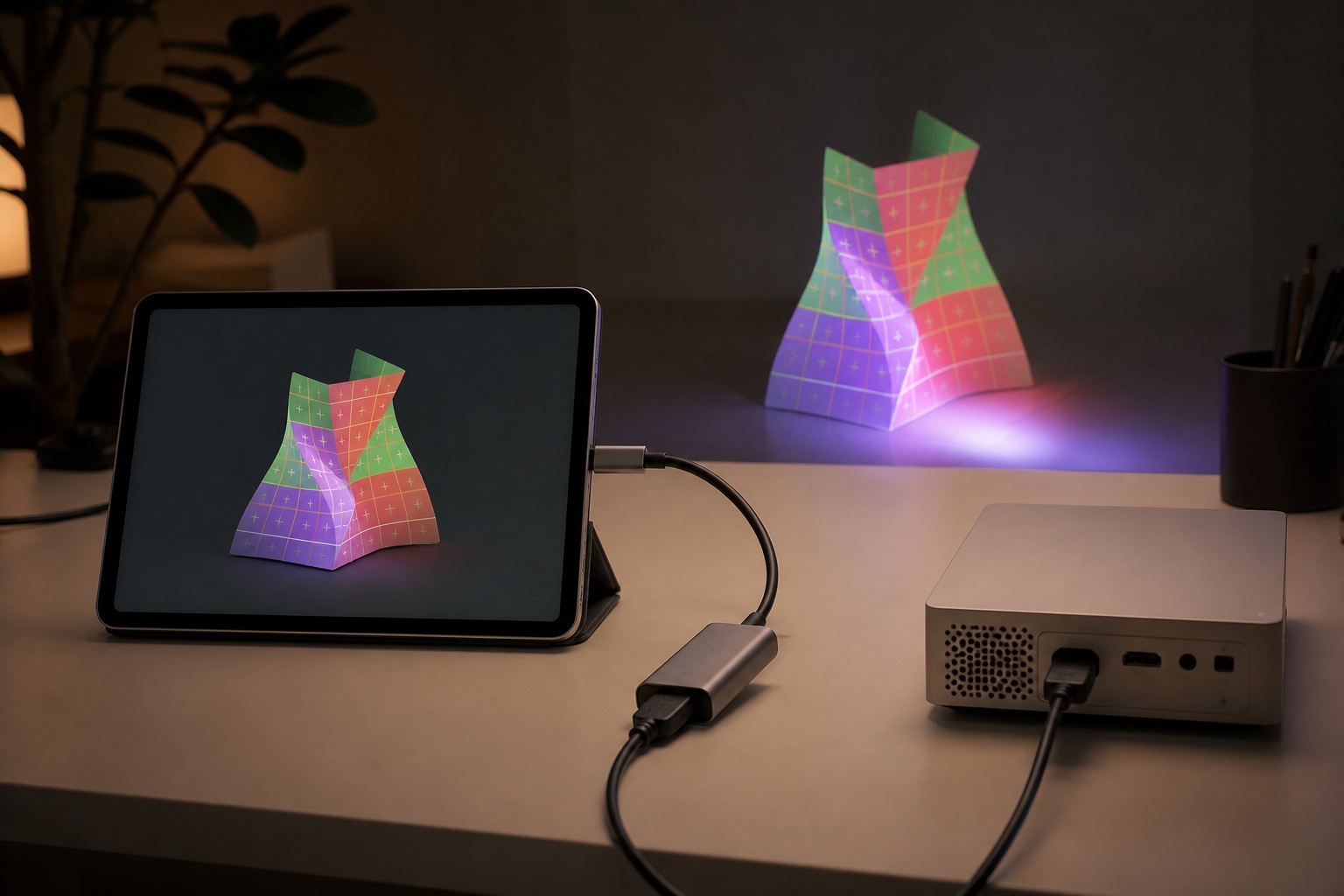
- Phone adapter (USB-C): Anker 5-in-1 USB-C hub with HDMI. For USB-C phones and iPads that output video. Run an HDMI cable from the hub to the HY300's HDMI input, and plug a charger into the hub's power-delivery port so the phone lasts the evening. Check price & availability (paid link) ↗
- Phone adapter (Lightning): Apple Lightning Digital AV Adapter. For iPhone 14 and earlier and every iPhone SE. HDMI out at up to 1080p, which the HY300 scales to its 720p panel, with a Lightning port for charging. Check price & availability (paid link) ↗
What the HY300 actually is
The HY300 is a mini projector from Magcubic, which lists a Hong Kong address and makes its projectors in mainland China. The plain HY300 that started the trend is no longer in Magcubic's own lineup. Its current HY300 series is the HY300 Pro, HY300 Pro+, HY300X, HY300 Ultra, HY300 MAX, HY300F and HY300 GT. All of them use native 720p LCD panels, and Magcubic rates them between 200 and 300 ANSI lumens.
The name has also become a product category. Marketplaces carry lookalike cylinders under other brands or none, and resellers use “HY300” freely in their titles. Magcubic says only magcubic.com and magcubic.top are its official sites and that it acts against counterfeits. If you buy elsewhere, check the seller and the box: the settings paths and figures below are Magcubic's, and a clone may not match them.
This guide is specs-based. We have not tested an HY300 ourselves; the figures come from Magcubic's product pages, comparison table and support answers.
The specs that matter for mapping
Resolution first. Magcubic's own guide to the HY300 Pro says plainly that it is not a native 1080p projector: the panel is 1280×720. “4K” and “8K support” on listings mean it accepts those signals and scales them down to 720p. For mapping that is workable, but edges look softer than on a 1080p projector, especially up close.
Brightness next. Magcubic rates the HY300 Pro at 200 ANSI lumens and the Pro+ at 290. The same site describes the HY300 Ultra as having “up to 15,000 lumens” on the page that also lists it at 260 ANSI, which is exactly why you should ignore five-digit lumen figures. Even the ANSI numbers are Magcubic's own, not an independent measurement.
The rest of the spec sheet is short. Both Pro models run Magcubic's own Android 14 with its own app store, not Google TV or Android TV. They have one HDMI input, one USB port and a DC input with an adapter in the box, but no battery; Magcubic doesn't document running them from a USB-C power bank, so plan on an outlet. Focus is a manual wheel or ring. Keystone is automatic vertically and manual horizontally, and the automatic part can be switched off. The stand rotates through 180°, so the lens can point at a wall or the ceiling. Magcubic says it measured the HY300 Pro's fan at about 35 dB at 1 m, and it asks for at least 10 cm (4 in) of clear space at the vents, since an overheated unit shuts itself down.
| Spec | HY300 Pro | HY300 Pro+ |
|---|---|---|
| Native resolution (pixels) | 1280×720 | 1280×720 |
| Rated brightness (ANSI lumens) | 200 | 290 (menu says 200) |
| Listed throw ratio | 0.8:1 | 0.9:1 |
| Listed distance (m) for picture size (in) | 0.75–2.65 m for 25–110 in | 0.6–2.5 m for 25–110 in |
| Focus | Manual wheel | Manual ring |
| Keystone | Auto vertical (can be turned off), manual horizontal | Auto vertical (can be turned off), manual horizontal |
| Inputs | HDMI ×1, USB ×1, DC ×1 | HDMI ×1, USB ×1, DC ×1 |
| Operating system | Android 14 (Magcubic app store) | Android 14 (Magcubic app store) |
What it can map well
Small, pale things in the dark. Our usual starting point for props and a rear-projected window is about 300 lumens after dark, so at 200 the HY300 Pro needs the darkest version of each job: a small image, no lamps, no streetlight on the glass. Light thins out fast as the picture grows: double the width and each square foot gets a quarter of the light.
- Props: a carved pumpkin, a skull, a few white boxes on a shelf. Anything that fits inside a picture about 1 m (3 ft) wide is its sweet spot.
- A window after dark: rear-project onto a sheet or film inside the glass, and switch the projector to its Rear installation mode so the image isn't mirrored. Keep the image to the window, not the wall around it.
- A bedroom wall or ceiling: a small patch with the lights off. The 180° stand makes ceiling scenes easy, but for mapping, the stand has to stay where you set it.
- Learning to map: drawing shapes, matching corners and building a short loop teach the same skills on a cheap projector as on an expensive one.
What it can't do
A garage door needs about 3,000 lumens, and a house front 4,000–5,000 or more. The HY300 Pro has a fifteenth of the first figure. You will see an image on the door, but it will be dim and grey, and no setting fixes that.
A room with the lights on needs 2,000 lumens or more for the colors to hold. With an HY300, turn the lights off or accept a washed-out picture. Detail is the other limit: at 720p, fine lines and small text break up on anything large, and a 2 m (6.5 ft) image is already showing you its pixels at close range.
How to set up an HY300 for mapping
A mapped show depends on the projector staying exactly where it was when you drew the shapes. Do these steps in this order, so nothing moves after you start mapping. The menu paths are from Magcubic's HY300 Pro and Pro+ support answers.
- Place it first. Put the projector where it will stay, square to the target, with the lens at about the middle of it. Magcubic says the HY300 Pro is sharpest around 1.68 m (5.5 ft) from the surface.
- Switch off auto keystone. On the HY300 Pro: Settings > Projection settings > Keystone Correction > Turn Off Auto Keystone Correction. On the Pro+: Settings > Projector Settings > Auto Trapezoidal Correction. Then reset the correction so the picture is a plain rectangle, and leave digital zoom or scaling at 100%. With auto keystone on, tilting the projector triggers a fresh correction, which would shift every shape you have drawn.
- Fix it in place. Use a tripod on the 1/4-inch hole if your unit has one, or a stable shelf. After mapping, don't swivel the head.
- Focus by hand on the surface that matters most. There is no autofocus to drift, which is one thing the HY300 does well for mapping.
- Measure the throw. Magcubic lists a 0.8:1 throw ratio for the Pro, but its own distance range (0.75–2.65 m for a 25–110 in picture) works out to about 1.1–1.4:1. So measure yours: set it 1.5 m (5 ft) from the wall, measure the image width, and divide 1.5 by that width. Then plug your ratio into our throw-distance calculator.
- Connect your phone by HDMI, open your mapping app, draw a shape over each surface, and test with solid colors before you load any video.
Connecting your phone: which Lazy Lighting routes work
Lazy Lighting runs on iPhone, iPad and Android and sends the finished picture to the projector, so the HY300 needs no special feature. Lazy Lighting lists four ways to connect, and on an Android projector without Google TV, such as the HY300 Pro and Pro+, they work out like this. Lazy Lighting's connection guide has the steps for each.
- USB-C or Lightning to HDMI adapter: works, and it is the one to use. Connect the adapter, run an HDMI cable to the HY300's HDMI input and select HDMI on its home screen. Our cables and adapters guide lists which phones output video over USB-C.
- AirPlay from iPhone or iPad: Magcubic's instructions for the HY300 Pro+ use Screen Mirroring in Control Center, with both devices on the same Wi-Fi. Expect some delay and lower image quality than a cable, and test it before show night.
- Miracast or Smart View from Android: on the Pro+, open the projector's ScreenCast app, choose Miracast and select Start, then pick the projector from Smart View or Screen Mirroring on the phone.
- Lazy Lighting Link: not on the projector itself. The receiver app needs a Google TV projector, and the HY300 Pro and Pro+ run Magcubic's own Android with its own app store. Magcubic itself says Android, Android TV and Google TV are not interchangeable. Lazy Lighting's connection guide gives a workaround for projectors like this: plug a Chromecast with Google TV into the HDMI port and run Link on the Chromecast. On the HY300 that uses its only HDMI input. The HY300 GT is the exception in the family, listed as Linux plus Google TV, but we haven't confirmed Lazy Lighting Link on it.
When to upgrade, and to what
Upgrade when you hit a limit you can name. If the image is grey even in full darkness at the size you need, you need more light. If edges look soft or stepped up close, you need native 1080p. If you want to put the phone down and map over Wi-Fi without a cable, you need Google TV for Lazy Lighting Link.
Indoors, the Anker Nebula Capsule 3 Laser, the one we use, fixes the second and third in one small body and adds a little light. The Nebula Mars 3 Air doubles the HY300 Pro's rated light with a battery and Google TV. Magcubic's own 1080p models, such as the HY320 Pro (rated 400 ANSI lumens) and HY350 Max (600), are another route, but those ratings are Magcubic's own as well. For more options at every price, see our list of the best cheap projectors. Garage doors and house fronts need a different class of projector altogether, and rooms with the lights on need a bright mains-powered model.
Frequently asked questions
Can the HY300 projector do projection mapping?
Yes. Any projector that shows your phone's or computer's picture can be mapped, because the app does the shaping. Keep the HY300 to small, pale surfaces in a dark room, switch off auto keystone, and connect by HDMI.
Is the HY300 really 4K?
No. Magcubic lists the HY300 series as native 1280×720. “4K supported” means it accepts a 4K signal and scales it down to 720p.
How many lumens is the HY300?
Magcubic rates the HY300 Pro at 200 ANSI lumens and the HY300 Pro+ at 290. Listings that claim thousands of lumens with no ANSI or ISO rating are not real brightness figures.
How do I turn off auto keystone on the HY300 Pro?
Magcubic's path is Settings > Projection settings > Keystone Correction > Turn Off Auto Keystone Correction. Then reset the correction so the image is a plain rectangle before you start mapping.
Can I connect an iPhone to an HY300?
Yes. Use a USB-C or Lightning to HDMI adapter and an HDMI cable, which is the most reliable route. Magcubic also documents wireless Screen Mirroring from Control Center on the HY300 Pro+, with some delay.
Does Lazy Lighting work with the HY300?
Yes, over an HDMI adapter, and wirelessly through AirPlay or Miracast where the projector's ScreenCast app supports it. Lazy Lighting Link doesn't run on the HY300 Pro or Pro+ itself, but you can plug a Chromecast with Google TV into the HDMI port and run Link there.
Can an HY300 project onto a garage door?
It will show an image, but a dim one. A garage door needs about 3,000 lumens after dark, roughly fifteen times the HY300 Pro's rating.
Prices, availability, and specifications can change by market and date. Confirm current manufacturer documentation and the retailer listing before purchasing.
- Magcubic HY300 Pro product page and specifications ↗
- Magcubic HY300 Pro+ product page and specifications ↗
- Magcubic: projector comparison table (HY300, HY320 and HY350 series) ↗
- Magcubic: HY300 Pro guide (native 720p, 4K input) ↗
- Magcubic FAQ: keystone, focus, mirroring and fan noise ↗
- Magcubic HY300 Ultra product page (260 ANSI and “up to 15,000 lumens”) ↗
- Magcubic: official websites and trademark ↗
- Magcubic tripod bracket for the HY300 Pro (1/4-inch screw) ↗
- Nebula Capsule 3 Laser specifications ↗
- Nebula Mars 3 Air specifications ↗
- ProjectorCentral: Anker Nebula Mars 3 Air review ↗
- Apple: connect iPhone to a display with a cable ↗
- Lazy Lighting connection guide (our app) ↗