
Our recommendation
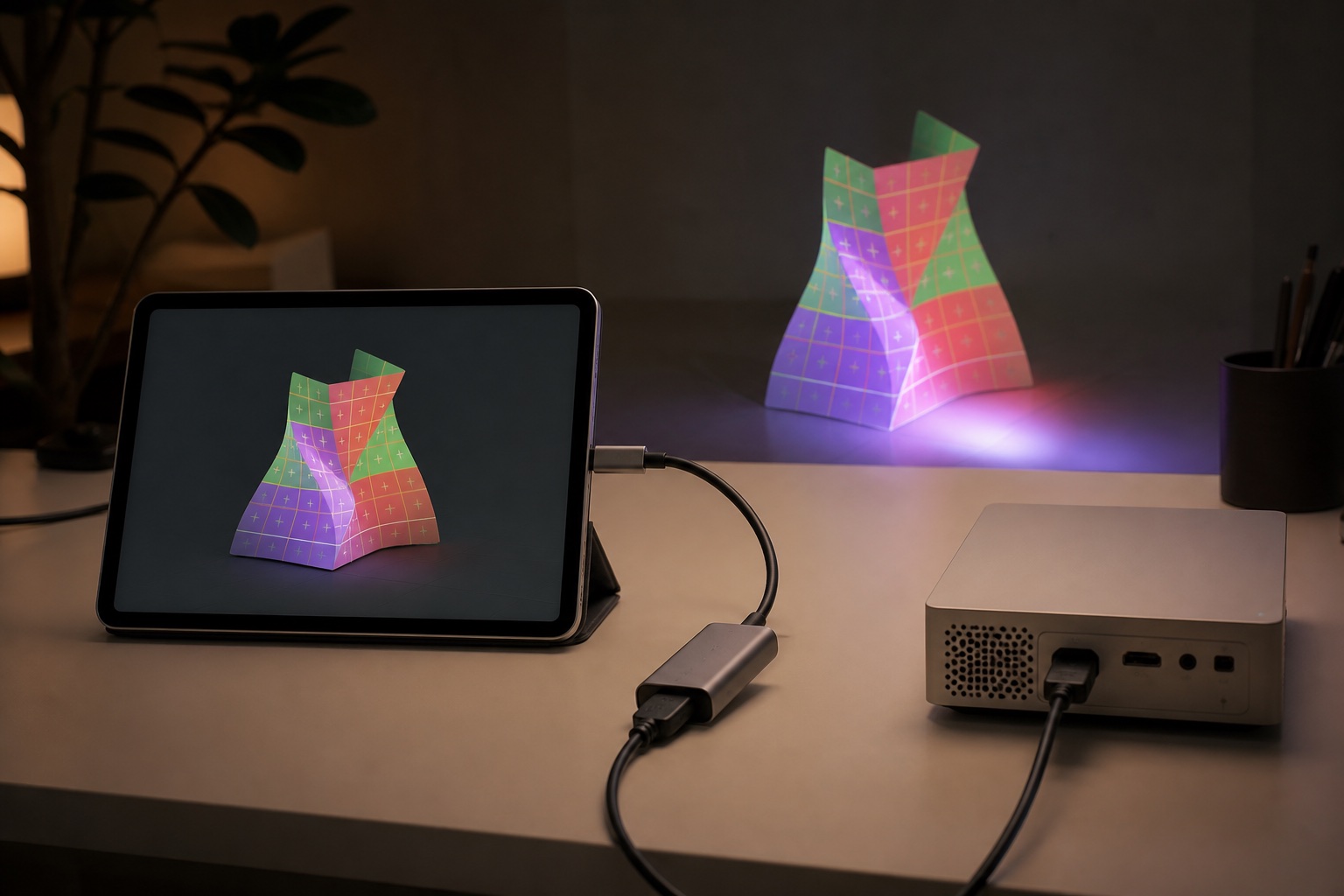
Use a cable when you can. USB-C iPhones (15 and later, except the 16e and 17e), USB-C iPads, most Samsung Galaxy S, Note, Fold and Tab S models, and Pixel 8 and later output video through a USB-C-to-HDMI adapter or hub. Lightning iPhones need Apple's Lightning Digital AV Adapter. Many budget Android phones can't output video over USB-C at all; for those, use Miracast or Smart View where the phone and projector support it, or Lazy Lighting Link on a Google TV projector. Disclosure: we make Lazy Lighting.
What else you need
- USB-C phones and iPads: Anker 5-in-1 USB-C hub with HDMI. 4K HDMI output and up to 85 W power delivery, per Anker, so the phone charges while it outputs video. Only for devices that support video over USB-C. Check price & availability (paid link) ↗
- Lightning iPhones: Apple Lightning Digital AV Adapter. Apple's own adapter for iPhone 14 and earlier and every iPhone SE. Up to 1080p, with a Lightning port for charging while connected. Check price & availability (paid link) ↗
Does your phone output video over USB-C?
Video over USB-C needs DisplayPort Alt Mode, and plenty of phones with a USB-C port don't support it: the port charges and transfers files but carries no picture. Phone makers publish which models do. From Apple, Samsung and Google's own support pages:
- iPhone 15 and later: yes, over USB-C. Apple's list excludes the iPhone 16e and iPhone 17e.
- iPhone 14 and earlier (Lightning, back to iPhone 5) and every iPhone SE: yes, with Apple's Lightning Digital AV Adapter.
- iPad with USB-C: yes, with a USB-C-to-HDMI adapter or hub.
- Samsung Galaxy: S8 and later, Note8 and later, every Z Fold, Z Flip7 and Z Flip8, and Tab S4 and later (except the Tab S9 FE and Tab S10 FE). Earlier Z Flips and the Z Flip7 FE can't. Of the Galaxy A phones, only the A90 5G is listed.
- Google Pixel: Pixel 8 and later. Google lists wired display output only for those models.
- Other Android phones: check the spec sheet for DisplayPort Alt Mode, video out or HDMI output. Many budget phones, especially those whose USB-C port only runs at USB 2.0 speed, don't support it.
| Device | Wired video out | Adapter | Wireless options |
|---|---|---|---|
| iPhone 15 and later (not 16e or 17e) | Yes, USB-C (up to 4K60) | USB-C-to-HDMI hub or adapter | AirPlay, Lazy Lighting Link |
| iPhone 14 and earlier, iPhone SE | Yes, Lightning (up to 1080p) | Apple Lightning Digital AV Adapter | AirPlay, Lazy Lighting Link |
| USB-C iPad | Yes, USB-C | USB-C-to-HDMI hub or adapter | AirPlay, Lazy Lighting Link |
| Samsung Galaxy S8+, Note8+, Z Fold, Z Flip7/8, Tab S4+ (not Tab S9 FE/S10 FE) | Yes, USB-C | USB-C-to-HDMI hub or adapter | Smart View, Lazy Lighting Link |
| Google Pixel 8 and later | Yes, USB-C | USB-C-to-HDMI hub or adapter | Lazy Lighting Link |
| Pixel 7 and earlier, many budget Android phones | No | None works | Miracast where supported, Lazy Lighting Link |
The adapter for each phone
For USB-C phones and iPads, a USB-C-to-HDMI hub with power delivery is the most useful option, because the phone can charge while it outputs video. Our pick is the Anker 5-in-1 USB-C hub: Anker lists 4K HDMI output and up to 85 W power delivery. A plain USB-C-to-HDMI adapter or cable also works for shorter sessions. Watch for charge-only USB-C cables, which carry no video at all.
For Lightning iPhones, use Apple's Lightning Digital AV Adapter. It mirrors at up to 1080p, which matches 1080p projectors such as the Nebula Capsule 3 Laser, and it has a Lightning port so the phone can charge while connected. Inexpensive copies exist, but they may not work with every app or iOS version. Apple's troubleshooting advice: remove extension cables and converters, check the cable, and update iOS.
On Samsung phones, plugging into a display can start screen mirroring or Samsung DeX. Choose screen mirroring, not DeX, so the mapping app can use the projector as its output.
How long can the HDMI cable be?
The HDMI certification programs test and certify each cable at each length rather than setting one universal maximum, so the honest answer is: as long as a cable certified for that length and resolution. In practice, the easiest fix is to avoid a long run. Put the phone on the tripod, a stool or the ground next to the projector and use a short certified cable, around 3–6 ft (1–2 m).
If the phone has to sit far from the projector, use an active optical HDMI cable certified for that length rather than a long passive one, and test it with the real phone and projector before show night. Avoid chaining couplers and short extensions together. Mapping output at 1080p is undemanding, so a stable 1080p signal beats a fragile 4K one.
Wireless options for projection mapping
Wireless lets you stand at the surface while you drag shapes into place, and it removes the cable from the phone. The price is a dependency on Wi-Fi and the receiver, so test it for the length of your show and keep a cable as a backup. The options:
- AirPlay (iPhone and iPad): mirror to an Apple TV or an AirPlay-compatible projector or receiver on the same Wi-Fi. Lazy Lighting takes over the mirrored screen with the projector output.
- Miracast or Smart View (many Android phones, including Samsung): mirror to a projector or receiver that supports Miracast. It doesn't need a shared Wi-Fi network. Pixel phones use Google Cast instead.
- Lazy Lighting Link (iPhone, iPad and Android to Google TV or Android TV projectors): install the Link app on the projector from Google Play, then connect from the phone on the same Wi-Fi. Both projectors we recommend, the Nebula Capsule 3 Laser and XGIMI Horizon 20 Pro, run Google TV.
- Chromecast and Google Cast screen casting: not a good path for mapping. Casting mirrors the phone's whole screen with a noticeable delay, and Lazy Lighting doesn't use it.
Keep the phone powered and awake
A mapped loop that runs all evening will outlast a phone battery, especially while it drives an external display. Keep it charging through the hub's power-delivery port or the Lightning adapter's charging port. On iPhone, set Auto-Lock to Never (Settings, Display & Brightness) for the show; on Android, lengthen the screen timeout. Turn on Do Not Disturb so a notification never appears over your display.
Troubleshooting a blank projector
Most no-signal problems are one of a handful of things. Work through them in order, and see the Lazy Lighting connection guide for app-specific steps:
- Is the projector set to the right HDMI input?
- Does the phone support video out at all? Check the list above.
- Is it a charge-only USB-C cable? Try another cable or adapter.
- On Samsung, did DeX start instead of screen mirroring?
- Remove extension cables, couplers and splitters, then reconnect phone, adapter and projector directly.
- Restart the phone and projector, and update the phone's operating system.
Frequently asked questions
Which phones support USB-C video output?
iPhone 15 and later (except the 16e and 17e), USB-C iPads, Samsung Galaxy S8 and later, Note8 and later, Z Fold models, Z Flip7 and Z Flip8, most Tab S models, and Google Pixel 8 and later, according to Apple, Samsung and Google. Many budget Android phones don't support it.
Why isn't my USB-C to HDMI adapter working with my phone?
The most common reasons are that the phone doesn't support video over USB-C, the cable is charge-only, the projector is on the wrong input, or (on Samsung) DeX started instead of screen mirroring. Check the phone maker's list, then try a known-good adapter and cable.
Does the iPhone 15 support HDMI output?
Yes. iPhone 15 models output video over USB-C using DisplayPort, and Apple says adapters and cables that support HDMI 2.0 can output 4K at 60 Hz. Use a USB-C-to-HDMI adapter or hub.
Does the Pixel 7 support USB-C to HDMI?
No. Google lists wired display output only for Pixel 8 and later. On a Pixel 7 or earlier, use a wireless option such as a receiver app on a Google TV projector.
How long can an HDMI cable be?
HDMI cables are certified at each length rather than to one universal maximum. For mapping, the simplest answer is a short 3–6 ft (1–2 m) certified cable with the phone next to the projector. For longer runs, use an active optical HDMI cable certified for that length and test it first.
How do I connect my phone to a projector wirelessly?
Use AirPlay from iPhone or iPad to an AirPlay receiver, Miracast or Smart View from Android to a projector that supports it, or Lazy Lighting Link from any of them to a Google TV or Android TV projector. Avoid Google Cast screen casting for mapping.
Can I connect a phone to a projector without Wi-Fi?
Yes. A cable needs no network at all, and Miracast connects directly without a shared Wi-Fi network. AirPlay and Lazy Lighting Link need both devices on the same Wi-Fi.
Prices, availability, and specifications can change by market and date. Confirm current manufacturer documentation and the retailer listing before purchasing.
- Apple: Charge and connect with the USB-C connector on your iPhone ↗
- Apple: Get help with Apple Digital AV adapters ↗
- Apple: Connect iPad to a display with a cable ↗
- Apple: Lightning Digital AV Adapter ↗
- Apple: Use AirPlay to stream video or mirror your screen ↗
- Samsung: Use Samsung DeX (compatible devices for HDMI output) ↗
- Google: Project your Pixel phone's screen ↗
- HDMI Licensing Administrator: official HDMI cable certification programs ↗
- Lazy Lighting connection guide (our app) ↗